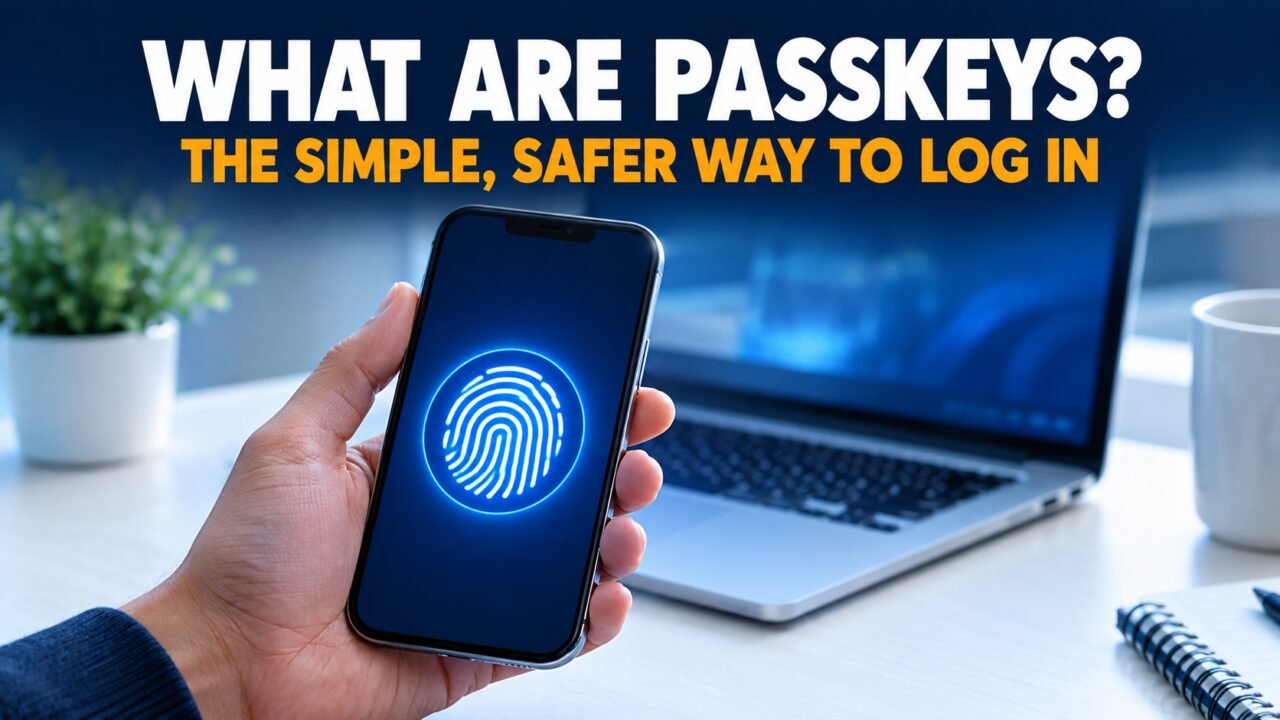
What are passkeys, and why does your phone keep offering to create one every time you log in to Google, WhatsApp or Amazon? The short answer is that they are a replacement for passwords. You sign in with the same fingerprint, face scan or screen PIN you already use to unlock your phone, and there is nothing to type, remember or leak.
The longer answer is worth a few minutes of your time, because passkeys change how account security works in ways that matter for anyone who has ever been caught by a fake login page or a SIM swap. This guide explains how they work, where you can use them, what can go wrong, and how to set one up in five steps.
Table of Contents
What are passkeys, in plain words
A passkey is a digital key that lives on your device, or in a password manager that syncs across your devices. When you create one for a website or app, your device makes a matching pair of keys. The website keeps one half, called the public key. Your device keeps the other half, the private key, and never shares it.
When you sign in, the website sends a small challenge. Your device asks you to confirm it is you with a fingerprint, face or PIN, then uses the private key to answer the challenge. The website checks the answer with its public key. If it matches, you are in.
Nothing secret travels over the internet during this process. There is no password for a hacker to steal from the website’s database, because the website never had one. A stolen public key is useless on its own.
Passkeys are built on open standards called FIDO2 and WebAuthn, developed by the FIDO Alliance and the W3C. Apple, Google and Microsoft all back them, which is why the same idea works across iPhones, Android phones, Windows PCs and Macs.
How passkeys work behind the screen
You do not need to understand cryptography to use a passkey, but a little background explains why they are safer.
Passwords are a shared secret. You know it, and the website stores some version of it. If the website is breached, or you type the password into the wrong page, the secret is out. Passkeys use public-key cryptography instead, the same family of maths that protects online banking and HTTPS connections. The two keys are linked, but you cannot work out the private key from the public one.
Your fingerprint or face never leaves your phone. The biometric check happens locally and only unlocks the private key on that device. The website does not receive your fingerprint, and neither does Apple or Google.
There are two kinds of passkey. Synced passkeys are stored in a password manager such as Apple’s iCloud Keychain, Google Password Manager, Samsung Pass, 1Password or Bitwarden, and they follow you to a new phone. Device-bound passkeys live on a single piece of hardware, such as a USB security key, and never leave it. Most people will use synced passkeys. Journalists, activists and company administrators sometimes prefer hardware keys for their most sensitive accounts.
Passkeys vs passwords: what changes for you
From the user’s side, the biggest change is that login becomes a tap and a glance. You open an app or website, choose your account, confirm with your face or finger, and that is it. There is no password reset email, no forgotten caps lock and no guessing which of your three favourite passwords you used on this site.
Here is how the two compare in daily life:
- A password can be guessed, reused or written on a sticky note. A passkey cannot be guessed and is unique to each website.
- A password can be typed into a fake website. A passkey only works on the real website it was created for.
- A leaked password database exposes users. A leaked passkey database exposes only public keys, which are no use to an attacker.
- A password needs a second factor, such as an SMS code, to be reasonably safe. A passkey already combines something you have (your device) with something you are or know (your face, finger or PIN).
That last point is why many services now let a passkey login replace both the password and the one-time code.
Why passkeys stop most phishing attacks
Phishing is still the most common way ordinary people lose their accounts. A message arrives saying your bank account is blocked, or that you have won a prize, or that your WhatsApp will be deactivated. You tap the link, land on a page that looks exactly like the real one, and type your password. The attacker now has it.
Passkeys block this trick at a technical level. Each passkey is tied to the exact web address it was created for. If you visit a lookalike site such as “g00gle-security.com”, your device simply will not offer the Google passkey, because the domain does not match. You cannot hand over a passkey by mistake, even if the fake page fools you completely.
This matters in Pakistan, where scams built around fake bank alerts, courier messages and prize announcements are a routine part of life, and where SIM swaps have been used to intercept SMS codes. A passkey does not depend on your SIM card, so an attacker who gets a duplicate SIM still cannot sign in with it.
Passkeys do not protect you from everything. If someone tricks you into approving a payment, or installs malware that takes over your unlocked phone, a passkey will not help. They close one very large door, not every door.
Where you can use a passkey login today
Support has grown quickly since Apple, Google and Microsoft jointly committed to passkeys in 2022. Google made them the default sign-in option for personal accounts in 2023, and Microsoft began nudging new accounts toward passkeys in 2025. WhatsApp supports passkeys on Android and iPhone, which is useful in a country where so much of daily life runs through that one app.
A passkey login is now available on many of the services people use every day, including Google, Microsoft, Apple, WhatsApp, Amazon, PayPal, GitHub, TikTok and X, along with many others. The community-run site passkeys.dev keeps a directory of services that support them.
Banks and government portals are slower. Some international banks offer passkeys, but most Pakistani banking apps still rely on passwords, device binding and SMS or in-app codes. Check your bank’s security settings from time to time, because this is changing.
5 easy steps to set up your first passkey
The best place to start is your Google account or Apple account, because these often protect your email, and your email is the key to resetting almost everything else. The exact menus change from time to time, but the process follows the same pattern everywhere:
- Update your phone or computer to the latest version of its operating system, and make sure a screen lock (PIN, fingerprint or face) is turned on.
- Sign in to the account normally with your current password.
- Open the account’s security settings and look for an option called “Passkeys” or “Passkeys and security keys”.
- Choose “Create a passkey” and confirm with your fingerprint, face or screen PIN when your device asks.
- Sign out and sign back in to test it, then repeat the process for your other important accounts.
For WhatsApp, the option sits under Settings, then Account, then Passkeys. On an iPhone, make sure iCloud Keychain is switched on so your passkeys sync to your other Apple devices. On Android, Google Password Manager handles this automatically when you are signed in to your Google account.
Do not delete your password straight away. Keep it, and keep your recovery phone number and email up to date, until you are comfortable with how passkeys behave on all your devices.
What happens if you lose your phone
This is the question everyone asks, and it has a reassuring answer for most people.
If you use synced passkeys, they are backed up with end-to-end encryption in your iCloud or Google account. When you set up a new phone and sign in to that account, your passkeys come back with it. Losing the phone does not mean losing the keys.
What matters is that you can still get into the account that holds your passkeys. That means keeping your Apple ID or Google account recovery options up to date: a second email, a trusted phone number, and for Google, backup codes stored somewhere safe. If you use a password manager like 1Password or Bitwarden, keep its emergency kit or recovery details somewhere outside your phone.
A thief with your phone still needs your fingerprint, face or PIN to use any passkey on it. That is one more reason to use a proper screen lock and not a simple pattern that can be guessed by watching you.
Device-bound passkeys on hardware security keys are different. If you lose the key, you lose the passkey. People who use them usually register two keys and store one somewhere safe.
The drawbacks worth knowing
Passkeys are a clear step forward, but they are not perfect, and it helps to know the rough edges before you switch.
First, support is patchy. Some websites offer passkeys only on certain browsers, or only after you have signed in with a password first. You will be using passwords and passkeys side by side for years.
Second, moving between ecosystems is still clumsy. If you keep your passkeys in iCloud Keychain and later switch to an Android phone, moving them over has not always been straightforward. The FIDO Alliance has been working on standards for moving passkeys between password managers, and support is starting to arrive, but it is worth choosing a password manager you expect to stay with.
Third, shared devices are awkward. A family computer or an office laptop used by several people does not fit neatly with passkeys that are tied to one person’s biometrics. On a computer that is not yours, you can usually sign in by scanning a QR code with your phone instead, which keeps the passkey on your phone.
Fourth, account recovery is only as strong as its weakest option. If a website lets anyone reset your account with just an SMS code, an attacker can still go after that route. Passkeys raise the bar, but the recovery settings decide how high.
Passkeys and your family
Older parents and relatives are often the people most exposed to phishing, and they are also the people who struggle most with long, complicated passwords. In that sense, passkeys suit them well: there is nothing to remember, and a fake login page cannot collect anything.
If you help family members with their phones, set up passkeys for their Google account and WhatsApp while you are there. Walk them through a sign-in once so the fingerprint prompt does not surprise them later. Make sure their recovery phone number is correct, and write down where their backup codes are kept.
For children, the same logic applies to the accounts they use for school. A passkey on a child’s own device is far safer than a password they have shared with three friends.
What this means for small businesses and offices
Small companies in Pakistan often run on a handful of shared logins: one email account for orders, one social media page, one supplier portal that everyone uses. Those shared passwords get passed around on WhatsApp, written in notebooks and rarely changed when someone leaves. Attackers look for exactly this kind of setup.
The first fix has nothing to do with new technology. Give each person their own account wherever the service allows it, and remove their access when they leave the job. Most business tools, including Google Workspace, Microsoft 365 and Meta’s business tools for Facebook and Instagram pages, let you add several people to one business account without anyone sharing a password.
Once everyone has their own login, the switch becomes simple. Staff can create a passkey on their own phone for their own account, and the business no longer depends on a password that ten people know. If a phone goes missing or an employee leaves, you remove that one person’s access instead of changing the password for everyone.
For the accounts that control money or the company’s online presence, such as the domain registrar, the web hosting panel, the bank’s business portal and the main social media page, consider a hardware security key for the owner. A small USB or NFC key costs far less than recovering a hijacked Facebook page or a stolen domain name, and it cannot be phished.
It also helps to write down, somewhere safe and offline, which accounts matter most, who can access each one, and how to recover them. When something goes wrong at 11 at night, that single sheet of paper can save hours of panic.
If you run a small business and are planning your next step, our guide on how to write a business plan covers the basics, including how to budget for tools like these.
Should you switch now?
For most people, yes, at least for their most important accounts. Start with your main email account, then WhatsApp, then any shopping or payment account that offers a passkey login. There is no need to convert everything in one evening.
If you already use a good password manager with unique passwords and an authenticator app, you are in a strong position, and passkeys will mostly make logging in faster. If you reuse passwords or rely on SMS codes, passkeys are a bigger improvement, because they remove the two weaknesses that attackers exploit most often.
What are passkeys? Common questions
Are passkeys safer than two-factor codes?
In most cases, yes. SMS codes and even authenticator app codes can be phished, because you can type them into a fake page. A passkey only works on the real website it was created for, so it resists phishing much better.
Can someone use my passkey if they steal my phone?
Not without unlocking it. Every passkey sign-in needs your fingerprint, face or device PIN. Use a strong screen lock, and if your phone is stolen, sign in to your Apple or Google account from another device to remove it.
Does a passkey store my fingerprint?
No. Your fingerprint or face data stays on your device and is only used to unlock the passkey locally. The website never receives it.
Can I use passkeys on a shared computer?
Yes, usually by choosing to sign in with a phone and scanning the QR code shown on screen. The passkey stays on your phone, and your phone uses a short-range Bluetooth check to confirm it is near the computer.
What if a website does not support passkeys?
Keep using a strong, unique password with two-factor authentication there. A password manager makes this painless, and many of them store passkeys and passwords in the same place.
Do passkeys work without internet?
The sign-in itself needs a connection to the website, just like a password. Unlocking the passkey on your device does not.
The next time your phone asks whether you want to create a passkey, say yes for your email account first. For more technology explainers from A1 Blogs, see our latest stories or read who we are.